
.svg)
October StreamLine Updates: Easier Navigation & Recipe Details
Our October StreamLine update brings recipe and ingredient details directly into your dashboard, plus faster navigation between dining sites and Topanga product dashboards.

You’re already checking service results and getting waste-reduction insights in the StreamLine dashboard. Now, you can see your recipes there, too.
We’ve also introduced several other dashboard enhancements that will make your day-to-day more seamless—catch up on everything new below.
Navigation changes
Switch between organizations
StreamLine users who work with multiple dining programs can now access each organization’s dashboard without re-entering their login information.
In the StreamLine dashboard, click the toggle at the top of the screen to view your list of available sites.
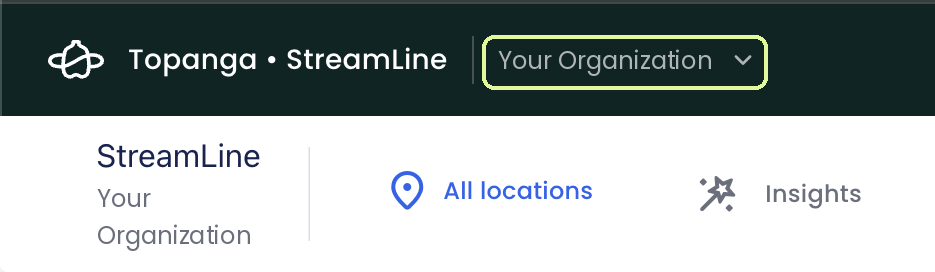
From there, you can jump into a different dashboard with a single click.
Access your ReusePass dashboard
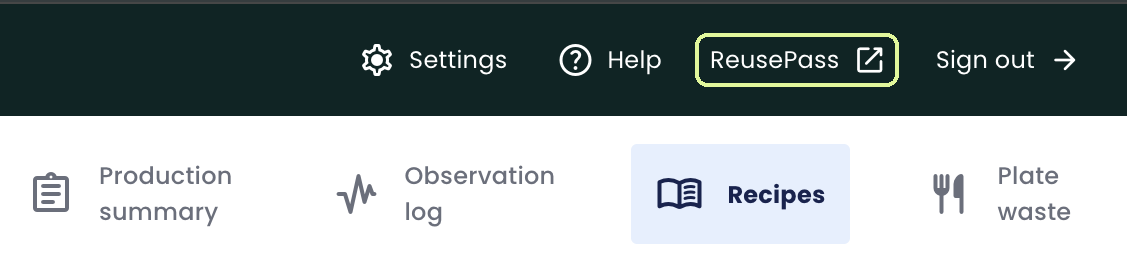
For ReusePass and StreamLine clients, cross-product dashboard access has moved from the left sidebar to the top-right corner.
See recipe details alongside your actuals
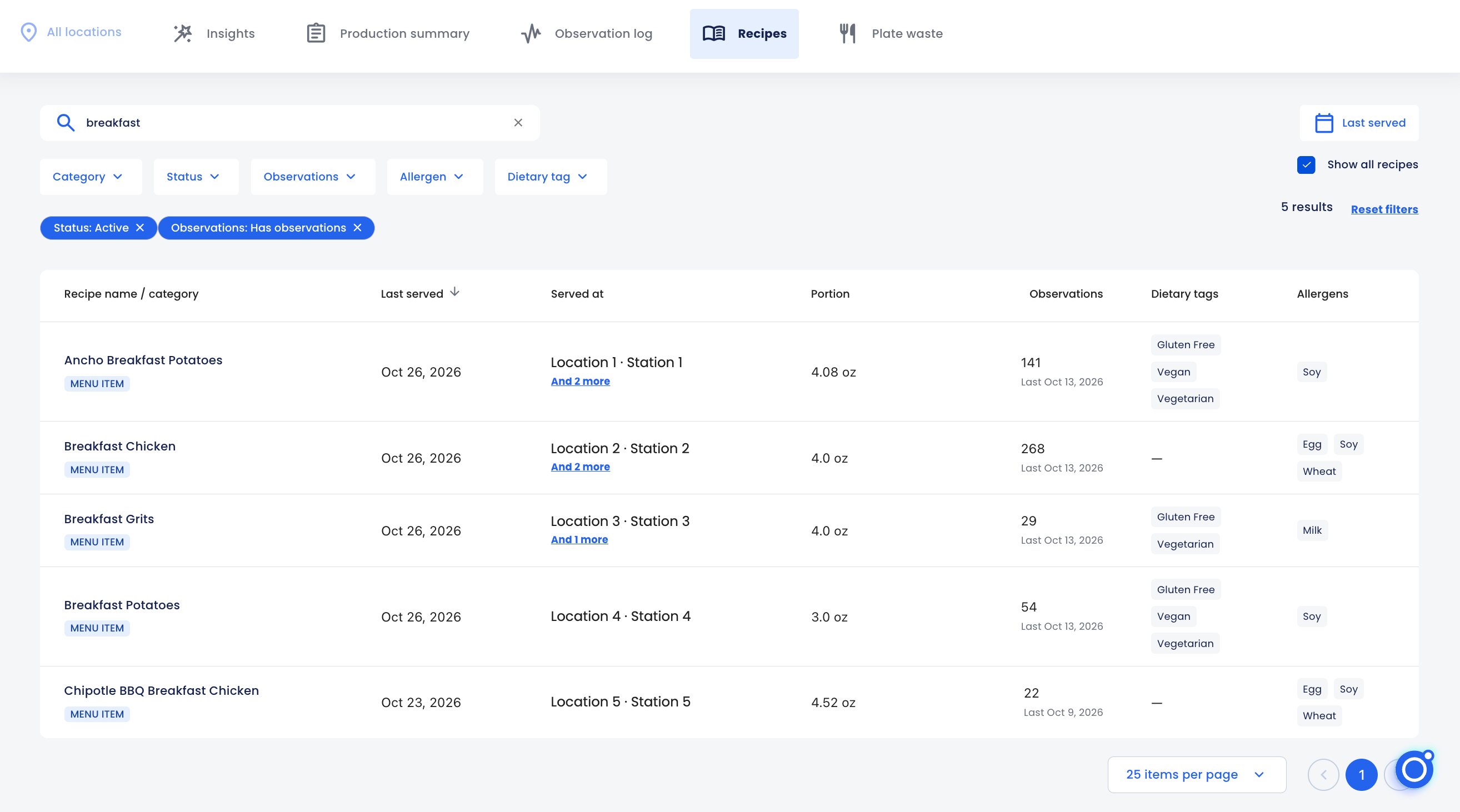
You can now view recipe and ingredient information directly in the StreamLine dashboard. Your menu management system remains the source of truth, but having this information on-hand speeds up decision-making, makes insights more actionable, and allows for greater quality control.
Review recipes and ingredients
You can access recipes from two main places within your dashboard:
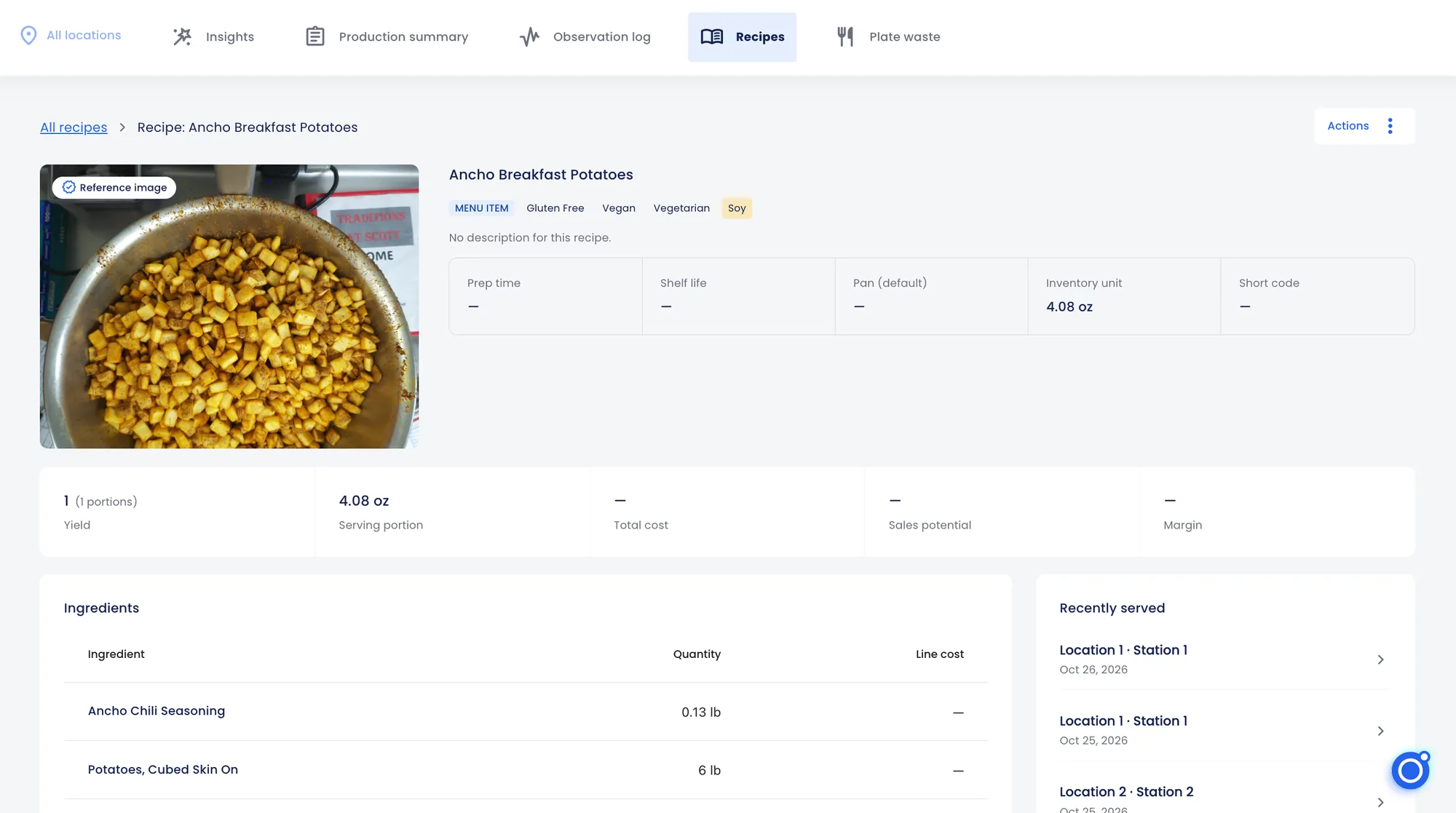
- On the Recipes page. Click on a recipe to see details like portion size, cost, ingredients, prep instructions, when it was last served, and linked smart scale observations.
- From the Observation log: Click on any observation to open the side panel, where you’ll now find a recipe link in the same section as the menu item ID.
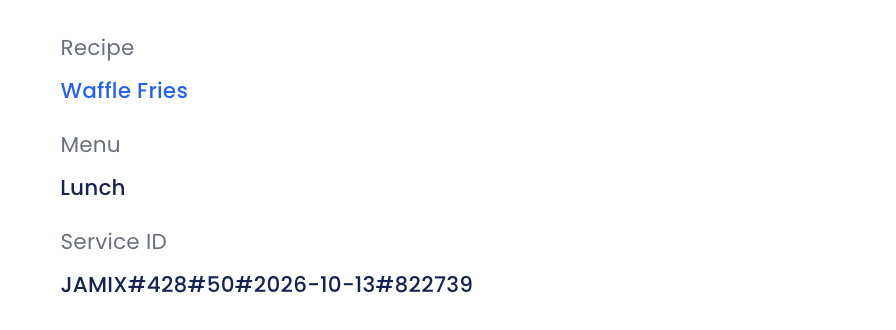
Recipe and ingredient information (other than observations) is pulled directly from your menu system; gaps there, like item costs, will also be gaps in the StreamLine view.
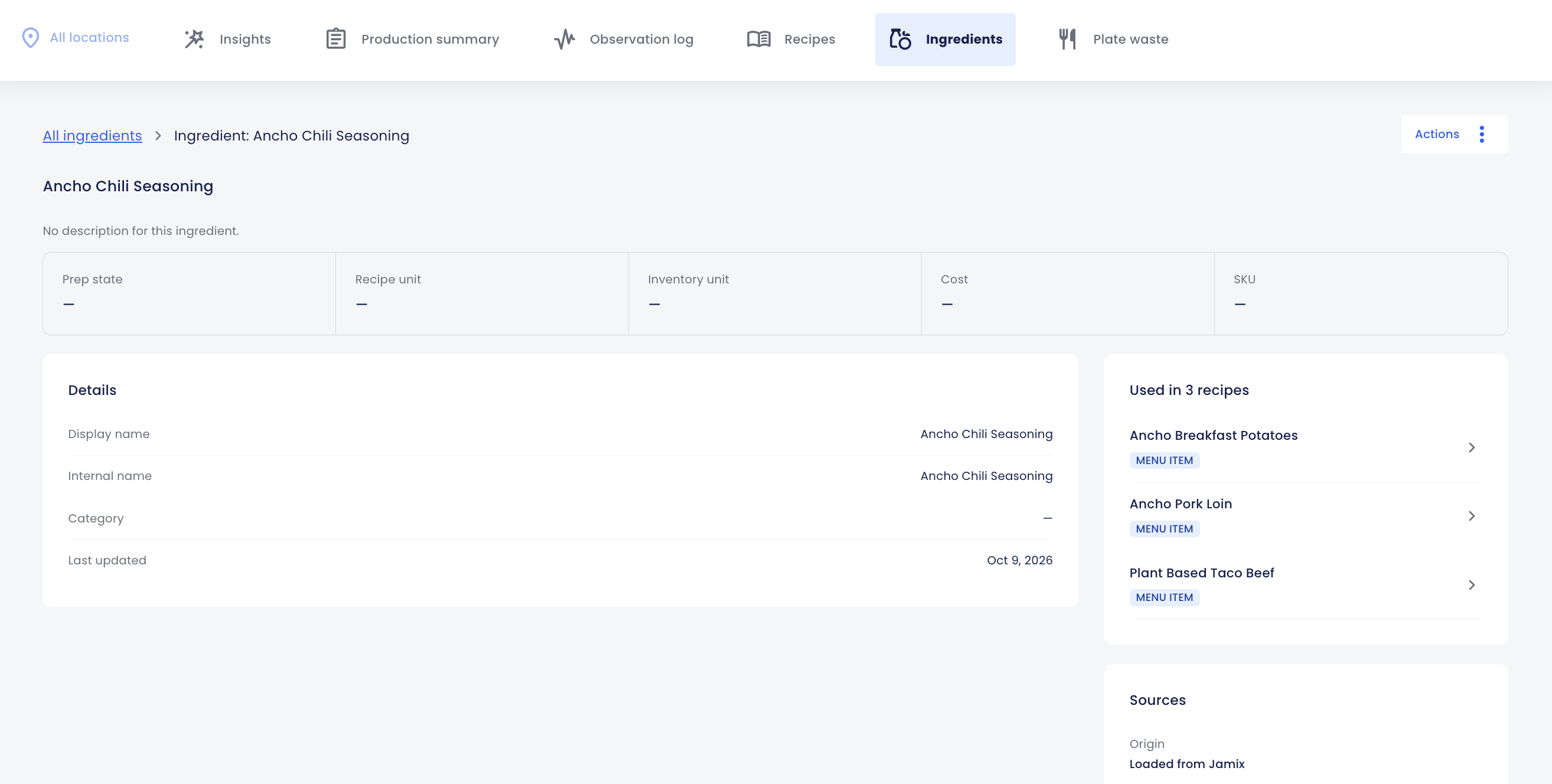
Where available, ingredients are linked to and listed on recipes page, same as in your menu system. Click any of the listed ingredients to open that ingredient’s page.
Edit recipe descriptions
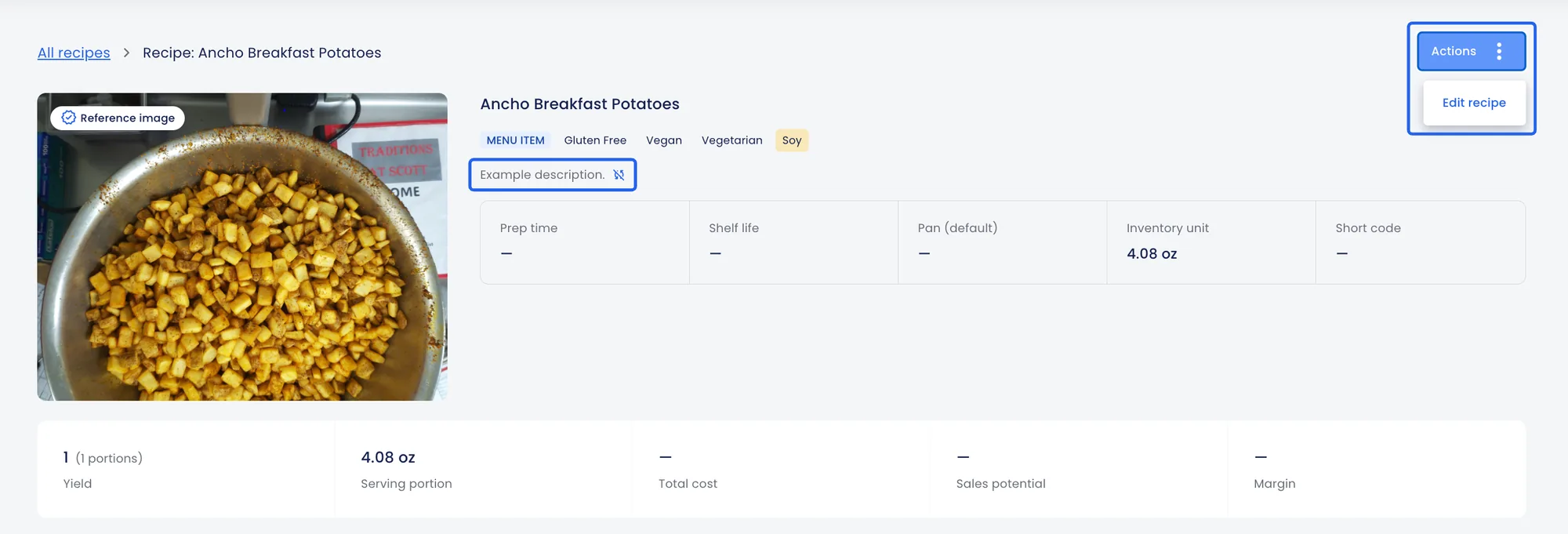
The only recipe edit currently permitted within the StreamLine interface is changing a recipe’s description, which won’t be pushed back your menu system. Think of these as copies, not the originals.
To add or revise a description, click Actions → Edit recipe. After making a change, you’ll see a blue sync-cross icon that indicates this element—not the entire recipe—is now out of sync with your menu management system, which is to be expected and not a cause for concern.
To see what was edited, when, and by whom, check the Version history card at the bottom of the page.

Set recipe photos
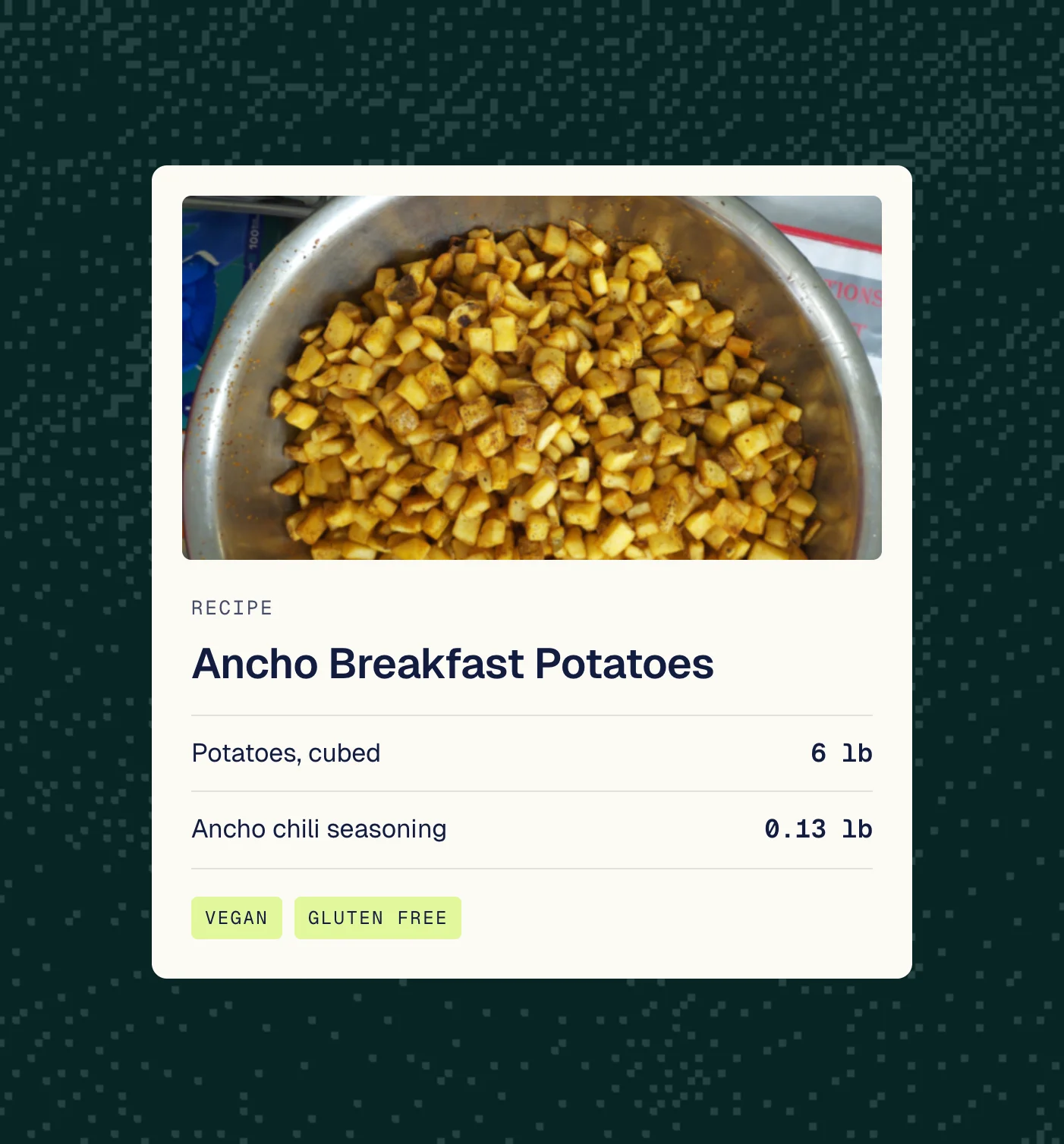
Even detailed prep instructions can't show how a dish should look. Now, operators can choose a recipe photo from past observations to give the team a clear presentation reference. This makes it easier to catch quality issues and deliver a consistent dining experience.
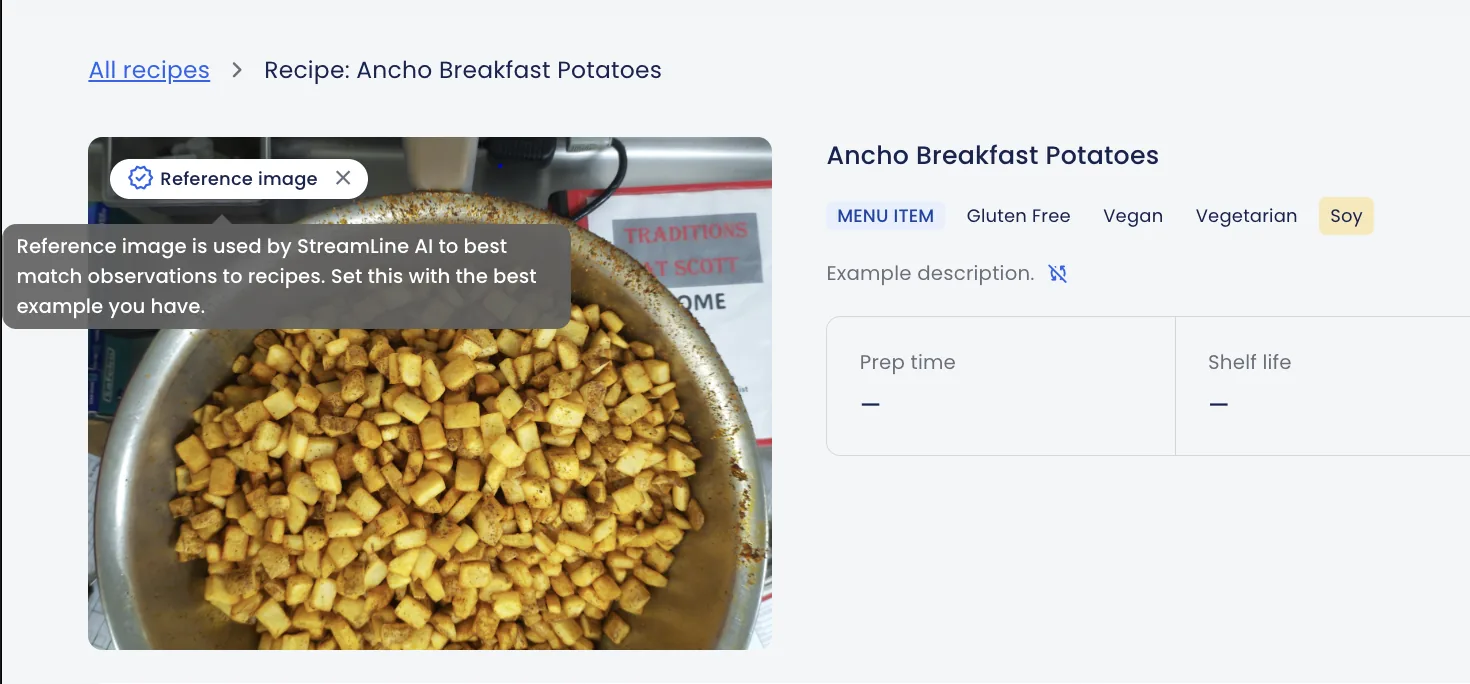
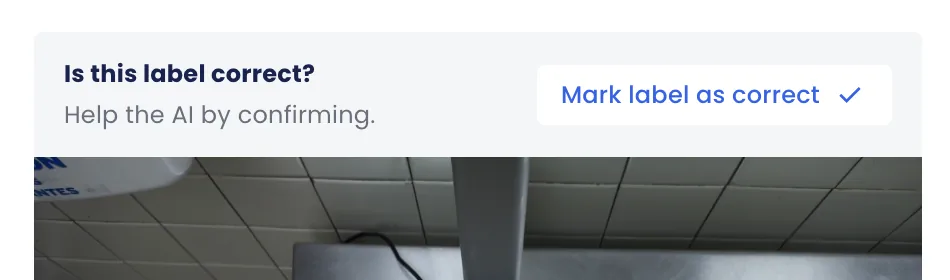
If there’s already a verified observation for a given menu item, that photo will be used as the recipe image. An observation becomes verified when a StreamLine user (including Topanga CSMs) confirms the label is correct. Verified observations also help StreamLine’s AI more consistently match recordings to the right menu items, resulting in fewer errors and less time spent re-labeling.
You can set or change a recipe’s image by clicking ‘Use as reference image’ on the recipe overview page or observation card. You can then undo this action by clicking ‘remove as reference image’ from the same location, or on the hero image itself (at the top of the recipe page).
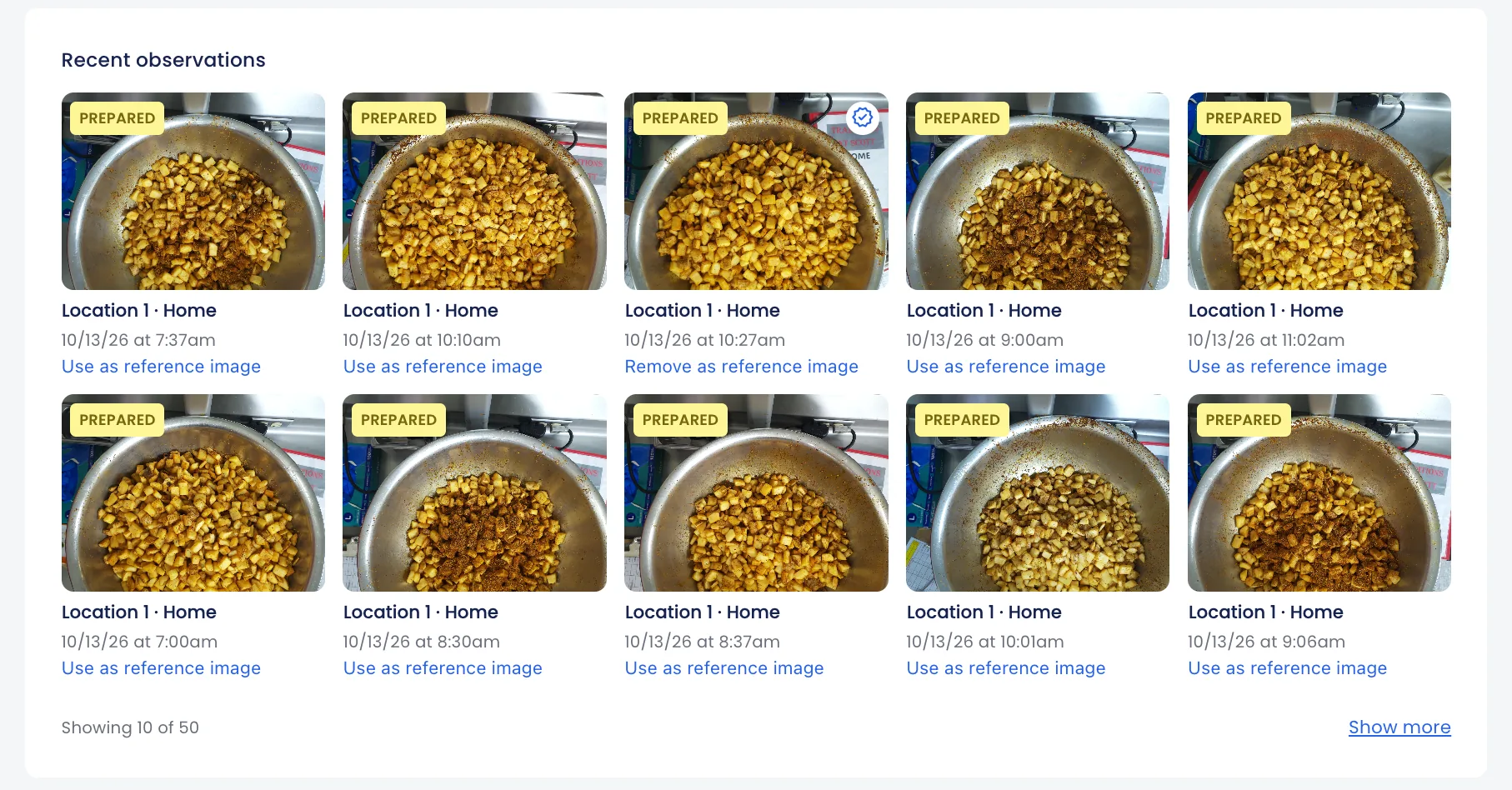
See for yourself
We’re excited to keep helping you see what’s happening in your kitchen, stay ahead of waste, and spend less time on admin.
Head to your dashboard now to explore these changes. If you have questions or initial feedback, please contact the Topanga Client Success team (clientsuccess@topanga.io).
Continue reading

A Chef's POV: Managing With the Same Precision You Cook With
Chef Chris Aquilino draws on 35 years in kitchens to unpack how culinary leadership has changed. For the chefs who thrive today, systems are just as important as skills: getting data, improving demand forecasting, and sharing the knowledge across the team.

Why Tracking Waste is Just the Start, Not the Solution
Trustworthy production data is a kitchen's foundation. But it’s what happens next—how (or if) that data is used—that really makes the difference. Most tools in-market don’t make that easy enough for foodservice operators.